


Open the Flows list in an org that has been live for five years and you will usually find something like this. A handful of workflow rules whose original purpose nobody can reconstruct. Two or three Process Builders inherited from a contractor. Several record-triggered flows on the Opportunity object, built at different times by different people, firing in an order that Salesforce does not guarantee and nobody has documented.
It all works, in the sense that nothing is throwing errors today. Then a field update stops firing, and finding out why takes a week.
Salesforce Flow is what you consolidate all of that into. Since 31 December 2025, when Workflow Rules and Process Builder reached end of support, it is not one automation option among several. It is where Salesforce puts its investment, and it is where Agentforce plugs in.
This guide covers what Flow is, the flow types available in 2026 and when to use each, how Flow Builder works, the practices that keep an org maintainable, and the mistakes that turn up most often in the orgs we audit.
Not sure whether your automation needs a tidy-up or a rebuild? Book a free consultation with our certified team.
What is Salesforce Flow?
Salesforce Flow is the platform’s low-code automation tool. It lets you build multi-step business processes that read, create, update and delete records, call external systems, present guided screens to users and invoke AI agents. You assemble all of it by point-and-click configuration in a visual builder instead of writing Apex.
Salesforce’s own term for this is declarative, which you will meet throughout the documentation. It means the same thing: you declare the outcome you want and the platform works out how to execute it.
Flows are built to look like flowcharts. You set a starting point, then connect elements in the order they should run: a Get Records element to pull data, a Decision to branch, a Loop to work through a collection, a Screen to ask the user something, an Action to send an email. Salesforce runs that sequence whenever the trigger conditions are met.
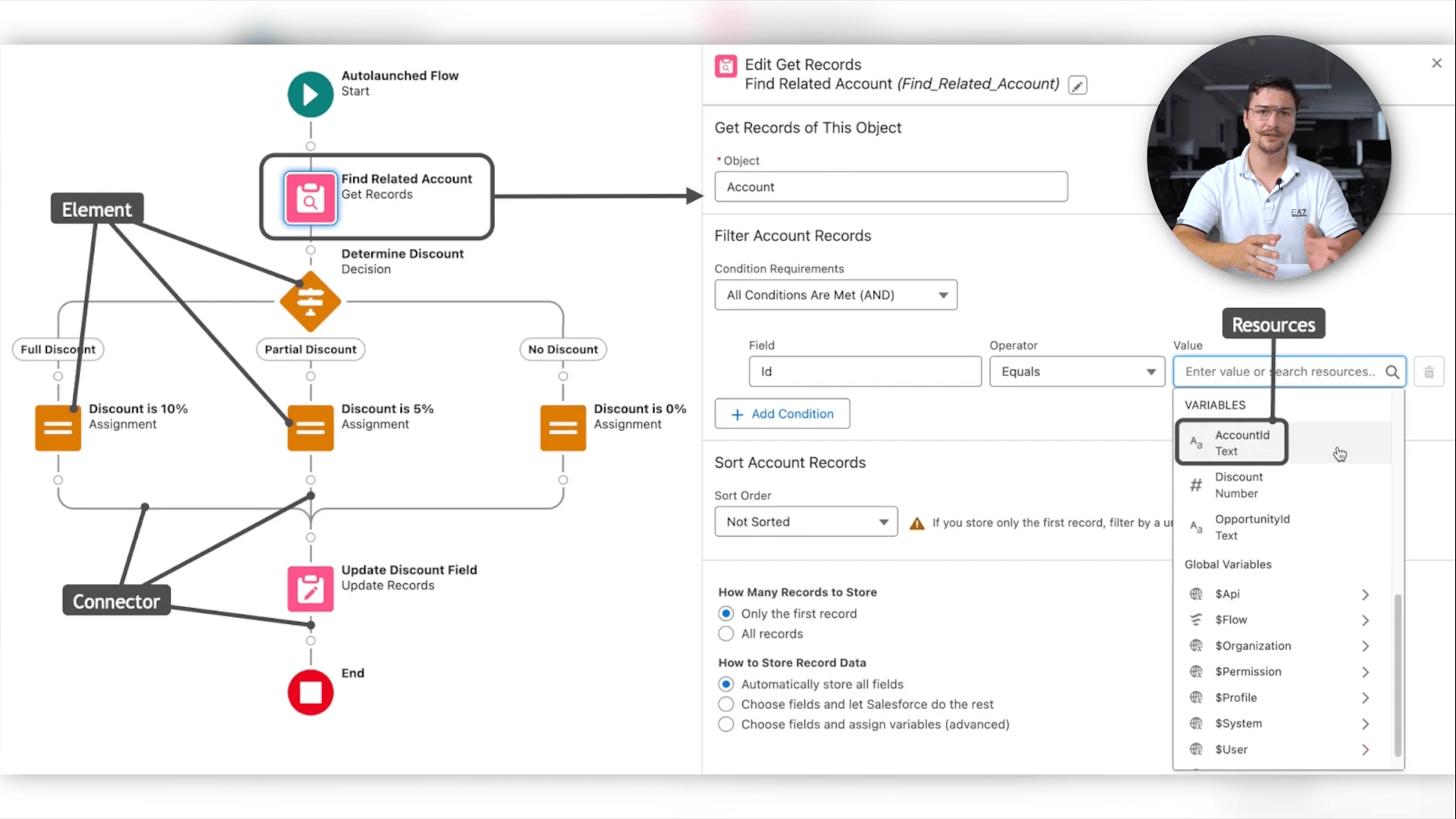
Three terms get used interchangeably and are worth separating:
- A flow is the automation itself, the thing you build and activate.
- Flow Builder is the interface you build it in.
- A flow interview is a single running instance of a flow. One flow can have thousands of interviews running against different records.
That third term matters more than it looks. When a flow fails, it fails for a specific record in a specific interview, and the screen that shows you which one is Paused and Failed Flow Interviews in Setup. Admins who have never heard the word “interview” tend never to find that screen.
What “low-code” means in practice
Flow gets described as both low-code and no-code, and the distinction is worth holding on to when you are planning who builds what.
No code is required for the large majority of flows. An admin with no programming background can build a working record-triggered flow in an afternoon. That is the claim behind the low-code label, and it holds.
What the label hides is that the concepts did not go anywhere. A flow has variables, collections, loops, conditional branching and transaction limits. Formula resources inside Flow use a formula language of their own. Anyone who has debugged a null reference in code will recognise what happens when a Get Records element finds nothing and the next element tries to use the result. Low-code removes the syntax, not the computer science.
The practical consequence is a cost shift rather than a cost saving. Building gets much faster, while designing and maintaining do not, and in orgs where nobody owns the design side, low-code is how automation sprawl happens quickly and quietly. Where Flow reaches its limit, you have an escape hatch: a developer writes an invocable Apex method and the flow calls it as an action, so the process stays configurable while the hard part sits in code.
Why Salesforce Flow matters more in 2026 than it did in 2024
Three things changed between December 2025 and June 2026.
Workflow Rules and Process Builder are done
31 December 2025 was the official end of support for both tools. The wording matters here, because it gets reported loosely. This was end of support rather than a switch-off. Existing workflow rules and processes continue to execute. What stopped is Salesforce’s obligation to fix them: no bug fixes, no patches, no enhancements, no support tickets.
You have also been unable to create new ones for some time. For any org still running legacy automation, the practical position is that it works until it does not, and at that point you are maintaining it yourself. Salesforce may retire the tools fully at some future point, and it is safer to plan as though it will.
Flow Orchestration stopped being a paid add-on
Since 2026, Flow Orchestration is a standard flow type. Before then, orchestrations were a consumption SKU. Orgs on eligible editions received 600 free runs a year, and beyond that you bought bundles of runs from your account executive. Few teams were willing to build a core business process on top of a meter, so adoption stayed low.
The meter is gone. Flow Orchestration is now included, with no usage-based caps, in Enterprise, Unlimited and Agentforce 1 editions, plus Developer Edition, subject to the same general flow limits as everything else.
If you recognise the pattern of chaining record-triggered flows together with a “Stage 2 Complete?” checkbox to fake a multi-user process, that workaround is now obsolete.
Flow became the place where AI agents get invoked
With Summer ’26, Agents in Flow Builder went generally available. There is now a Create Agent element on the canvas. You configure an Agentforce agent inline, give it instructions and actions, and call it from any flow. Existing AI Agent actions convert to the new element automatically when the flow is opened.
Deterministic automation and agentic automation now live on the same canvas. A flow can handle the steps that follow clear rules, hand the ambiguous step to an agent, then carry on with the rest. When you next review an automation, the question is no longer only whether Flow can do it. It is which parts need rules and which need judgement.
Summer ’26 also brought Agentforce into Flow Builder itself. You can edit screen flows using natural language prompts, and a beta Ask Agentforce capability diagnoses design-time and runtime failures in plain language, with a one-click Fix Issue option. Both require Data 360 and Einstein generative AI enabled in the org.
Salesforce Flow Builder: the interface explained
Salesforce Flow Builder is the low-code canvas where flows are designed. To open it, go to Setup, type “Flows” into the Quick Find box, select Flows, then click New Flow and choose your flow type.
Four areas matter.
The canvas is your visual working area, and it runs in one of two layout modes. Auto-Layout is the default. It places and spaces elements for you, handles connectors automatically, and works far better with screen readers. Free-Formgives you manual positioning, which earns its keep when you are restructuring a large flow and need to reorder elements in bulk. Standardising a team on Auto-Layout is one of the cheapest maintainability wins available.
The Toolbox sits on the left with two tabs. Elements holds everything you can drop on the canvas. Manager is where you create and inspect resources, and it shows usage details for each one, which is how you establish whether a variable is safe to delete.
The button bar holds Debug, Run, Activate, Save and Save As, plus undo and redo, version status and the errors and warnings indicator. Summer ’26 redesigned the validation panel so it stays collapsed while you are drafting and surfaces warnings when you ask for them.
The Start element is where record-triggered and schedule-triggered flows get their object, trigger conditions and entry criteria. Entry criteria are the highest-leverage settings in the whole flow and the ones most often left wide open.
Two recent additions worth knowing. Spring ’26 made Decision elements collapsible on the canvas, and Summer ’26 extended that to fault paths. On a large flow, collapsing every fault path is the difference between a diagram you can read and one you cannot.
Flows more complex than you want to build?
Some flows are an afternoon’s work. Others involve collections, subflows, orchestration across teams and error handling you have to get right the first time. If you don’t have the capacity in-house, ENWAY designs and builds them for you, then hands them over documented and tested, with conventions in place so your admins can maintain them afterwards.
20+ certified experts·5/5 satisfaction score·150+ projects delivered
The three building blocks
Every flow is assembled from the same three components.
Elements are the actions, in three families:
- Interaction elements: Screen (screen flows only), Action, Subflow, Custom Error
- Logic elements: Decision, Assignment, Loop, Collection Sort, Collection Filter, Pause
- Data elements: Get Records, Create Records, Update Records, Delete Records
Connectors are the lines between elements. They set execution order, and coming out of a Decision they define which branch runs.
Resources are the values a flow references: variables, constants, formulas, text templates, choices, record choice sets, picklist choice sets and stages. A resource is a named container, so the whole discipline is in the naming. Someone opening the flow in two years should be able to tell what is in varAccountOwnerEmail without tracing it backwards.
The Salesforce flow types, and how to choose between them
Nearly every flow falls into one of two families. Screen flows involve a user. Autolaunched flows do not. Most of the named flow types are subdivisions of the second. Orchestrations sit alongside both as a separate framework, covered further down.
Salesforce screen flow
Best for: guided processes where a person needs to see something, decide something or type something.
A Salesforce screen flow presents one or more screens to a user, collects input and acts on it. It is the only flow type that puts an interface in front of someone directly.
If your org contains a custom Lightning component that exists purely to collect four fields and save them, that is a screen flow somebody built the hard way. Screens are assembled from components in three groups: input components (text, checkbox, picklist, date and so on), display components (display text, images), and custom components you or a developer have built or installed from AppExchange. The standard library is broader than most admins expect and includes Data Table, Lookup, Slider, Toggle and Repeater, the last of which lets a user add any number of child records in one pass.
Screen flows reach users in several ways:
- As a quick action on a record. Create the action under Object Manager, choose Flow as the type and reference your flow. Name a text variable
recordIdand mark it available for input, and the flow receives the record the user is looking at. - Embedded on a Lightning page, home page or record page. A flow on the primary visible tab runs on every page load, so anything resource-heavy belongs on a secondary tab.
- In an Experience Cloud site, where permissions deserve close attention. Guest users need access to the records involved and permission to run the flow itself.
Summer ’26 added a Radio Button Group component as a tidier alternative to standard radio buttons, the ability to insert static resource images directly in Display Text without leaving Flow Builder, and a native Show Toast Message action for success, warning, error and information notifications.
Autolaunched flow
Best for: background automation that runs without anyone watching.
An autolaunched flow in Salesforce is a flow that runs without user interaction and without displaying screens. It cannot contain Screen elements, choices or local actions.
The word is used in two different senses, and conflating them causes real confusion when you are choosing a flow type.
Sense one, the specific flow type. Create a new flow, pick Autolaunched Flow (No Trigger), and you get a flow that does nothing until something else calls it: another flow via a Subflow element, an Apex class, a process, a REST API call, a custom button, a Lightning web component or a Visualforce page. You create any required input variables yourself, because there is no triggering record handing you a $Record variable.
This is the reusable building block of a well-organised org. Where three record-triggered flows all need to calculate a renewal date, that calculation belongs in one autolaunched flow called as a subflow from each, rather than copy-pasted into all three and updated in two of them next time the rule changes.
This flow type also has access to the Pause element, which lets a flow wait for a set time, until a date or until a resume event arrives. Pause works in autolaunched flows with no trigger and in schedule-triggered flows. Screen flows and record-triggered flows cannot use it, and record-triggered flows use scheduled paths instead.
Sense two, the umbrella category. Everything below is technically an autolaunched flow with a trigger defined inside it. What differs is what wakes it up.
Record-triggered flow
Best for: reacting to record changes, which covers the majority of automation in most orgs.
A record-triggered flow fires when a record is created, updated or deleted. For create and update triggers, the critical configuration choice is when it runs relative to the database save:
- Fast Field Updates (before save). Runs before the record is committed and updates fields on the triggering record with no additional DML, which makes it substantially faster than the after-save equivalent. The element set is restricted, covering assignment, decisions, retrieving records and looping. When you are only setting fields on the record that triggered the flow, this is almost always the right choice.
- Actions and Related Records (after save). Runs after the commit with access to the full element set: create, update or delete other records, send emails, call actions, invoke subflows.
Delete triggers are the exception. There is no before-save option for a deletion, so a delete-triggered flow always runs in the after-save context.
Record-triggered flows are the most capable flow type and the most common source of production incidents. An unhandled fault in an after-save flow can block the user’s save entirely. On a case or an order, that is a business outage, and the symptom users report is a cryptic error on a record they were halfway through editing.
The risk rises sharply when the triggering record is written by an integration rather than a person, because the integration retries, fails again, and generates volume that nobody is monitoring. Build fault paths on every element that can fail, and consider running non-critical logic on an asynchronous path so the save completes regardless.
Schedule-triggered flow
Best for: batch work on a timetable.
Runs at a set date, time and frequency, either once, daily or weekly, against a batch of records matching your criteria. Typical uses are data hygiene, overdue-record sweeps, scheduled recalculations and periodic notifications. There is no other way to launch one.
Data volume is the trap. A scheduled flow that handles 500 records comfortably in a sandbox behaves differently against 50,000 in production, and the failure usually surfaces the first time someone loads historical data. Design against collections from the start and test at production volumes.
Platform event-triggered flow
Best for: reacting to events from systems outside Salesforce.
Fires when a platform event message is received. This is how declarative automation joins event-driven integration architecture, work that used to require a developer.
A representative pattern: an external SMS provider publishes a platform event whenever a message is sent or received, carrying the message body, phone number and any known contact identifier. A platform event-triggered flow creates the matching activity record in Salesforce, and creates a lead where no contact matches. No Apex involved.
Data Cloud-triggered flow
Best for: reacting to changes in unified customer data rather than in CRM records.
Fires when data changes in Data 360, the platform Salesforce called Data Cloud until 14 October 2025. The flow type kept the old name, so you create a Data Cloud-triggered flow that reacts to Data 360 data.
Because Data 360 holds ingested and unified data from across your estate, these flows respond to signals that never touch a standard Salesforce object: an engagement score falling below a threshold, a loyalty milestone being reached, a product usage pattern shifting.
Approval orchestration flows
Best for: approvals, in place of the classic Approval Process.
Two flow types now exist specifically for approvals. Autolaunched Approval Orchestration is triggered from another process or a custom button. Record-Triggered Approval Orchestration is triggered on record create or update. Both are built on the orchestration framework, use stages and steps, support recall, offer better error handling and debugging than classic approvals, and consume no automation credits.
Summer ’26 added unanimous consent for group-assigned approval steps. Every group member receives their own work item, the step advances only when all approve, and a single rejection closes the step and withdraws the remaining work items. That replaces the old workaround of building a separate step per approver, which was a real burden on compliance-heavy processes.
Classic Approval Processes still function. Given where the investment is going, new approval work belongs in approval orchestration.
Template-triggered prompt flow
Best for: injecting generative AI output into a process.
Runs when a prompt template is triggered by a record change or user action, executing an autolaunched flow that includes the prompt. Used for drafting emails, summarising records and generating content grounded in real-time context.
Quick reference: which flow type do I need?
Screen flows involve a user. Autolaunched flows do not. Everything else is a question of what wakes the flow up.
| If you need to… | Use |
|---|---|
| Collect input from a user through a guided interface | Screen flow |
| Build reusable logic called from other automation | Autolaunched flow (no trigger) |
| Update fields on the record that just changed | Record-triggered, before save |
| Create or update other records after a change | Record-triggered, after save |
| Process a batch of records on a timetable | Schedule-triggered flow |
| React to an event from an external system | Platform event-triggered flow |
| React to a change in unified Data 360 data | Data Cloud-triggered flow |
| Route something for human approval | Approval orchestration flow |
| Coordinate a multi-user process across teams | Flow Orchestration |
| Generate AI content inside a process | Template-triggered prompt flow |
Salesforce Flow Orchestration: the multi-user layer
Salesforce Flow Orchestration coordinates processes that span multiple people, teams and timeframes. Where a standard flow automates one thing well, an orchestration sequences several of them across an organisation.
Structurally, an orchestration is built from stages and steps rather than elements. Stages run in sequence, and steps within a stage can run in parallel. Each step is either a background step, which calls an autolaunched flow and runs unattended, or an interactive step, which assigns work to a user or queue and surfaces it through the Orchestration Work Guide on the relevant record page.
That last detail is what separates an orchestration from a chain of flows. The user does not have to know a process exists or go hunting for their task. It appears where they already are.
When orchestration is the right answer
The tell that you need orchestration is a status picklist with values like “Awaiting Finance” that a human updates manually. The second tell is a Slack channel that exists so people can ask each other where things are.
Typical fits are customer onboarding after a deal closes, where legal reviews the contract, finance sets up billing, delivery assigns a team and the account manager schedules kick-off. Employee onboarding across HR, IT and facilities. Multi-department procurement. Anything where the handoffs are real and currently invisible.
What changed in February 2026
Before February 2026, orchestration was a paid add-on with a 600-run annual allowance and per-run pricing beyond it. Since that date it is a standard flow type with no usage-based limits in Enterprise, Unlimited and Agentforce 1 editions, plus Developer Edition, and in legacy Performance Edition orgs.
If your team evaluated Flow Orchestration in 2024 or 2025 and shelved it on cost, that assessment is out of date. It is the single highest-value item to re-examine in your automation strategy this year.
How to create a flow in Salesforce
- Map the process before you open Flow Builder. Write down the trigger, every branch, every outcome and every failure mode. A large share of the flows we are asked to repair were built by someone who started dragging elements before the process was settled.
- Open Flow Builder. Setup, Quick Find, “Flows”, New Flow.
- Choose the flow type. This choice constrains everything after it and is awkward to reverse, so use the table above and make it deliberately.
- Configure the Start element. Set entry criteria as tightly as you can. A flow that fires on every Account update and immediately routes most interviews to an end node is consuming platform resources on every single save.
- Set up your inputs. Record-triggered and schedule-triggered flows give you
$Recordand$Record__Priorfor free. Autolaunched flows do not, so create the input variables yourself. - Build the logic. Retrieve your records before the loop rather than inside it, collect what needs changing as you iterate, and run the decisions and the DML afterwards.
- Add fault paths. Every element that touches the database can fail. Where you have not defined what happens next, Salesforce decides for you, and its choice is usually an unhelpful error in front of a user.
- Add descriptions. To the flow, and to every element whose purpose is not obvious from its name. Four minutes now, hours saved later.
- Debug. Run against real data with defined inputs. Use rollback mode so debugging leaves no trace in your data, and run as another user to see how the flow behaves under real permissions rather than yours.
- Test properly. For record-triggered flows, configure Flow Tests: set a starting record, modify values, run it through, assert the expected outcome. Three constraints to plan around. You cannot update related records in the test interface. The Equals operator is far more reliable than Does Not Equal for assertions. Autolaunched subflows are not directly supported.
- Activate and distribute. Only one version of a flow can be active at any time.
Salesforce Flow best practices
These are the Salesforce Flow best practices we apply on every build and check for in every audit. The performance and error-handling groups are where ignoring the advice most often causes an outage, so start there if you are triaging an existing org.
Design and planning
Set entry criteria narrowly. The cheapest flow is the one that does not run. Filter at the Start element rather than firing every time and immediately deciding to do nothing.
Agree naming conventions early. A pattern like Object_Trigger_Purpose, giving you Opportunity_AfterSave_CreateRenewal, makes the Flows list self-documenting. If your list currently holds three entries called “Opportunity Update” and the only way to tell them apart is to open each one, you already know what the alternative costs. Retrofitting names across a neglected org is a miserable project, and it is one of the jobs teams put off longest.
Take a position on record-triggered flows per object. There is a long-running community argument between one flow per object per context and one flow per business process. Both work. What fails is having no position, because that is how an org acquires nine flows on Opportunity with no defined execution order. Pick one, write it down and hold the line.
Structure
Move anything reused into a subflow. Duplicated logic in three flows gives you three places to update and two places to forget.
Keep decisions shallow. Branches inside branches inside branches become unmaintainable quickly. Three levels deep usually signals a process that wants splitting rather than nesting.
Standardise on Auto-Layout. Team consistency beats individual preference here.
Performance and scalability
Keep Get, Create, Update and Delete elements out of loops. This is the most common serious mistake in Salesforce automation. A loop over 200 records containing a Get element tries to issue 200 queries, and since a transaction allows 100, it fails partway through. Retrieve once before the loop, build a collection inside it, then run a single DML operation on the collection afterwards.
Bulkify by default. Flows routinely run against many records at once. Designing for collections from the start is much cheaper than retrofitting after a data load falls over.
Never hard-code record IDs. They differ between sandbox and production, which makes a hard-coded ID a deployment failure waiting to happen. Use custom metadata, custom labels or a Get Records element.
Use $Record rather than a Get element. Record-triggered and schedule-triggered flows already hand you the triggering record’s fields and its parents’ fields. Querying for a record you have been given wastes a SOQL call in every interview.
Know the limits you can hit. A single synchronous transaction allows 100 SOQL queries, 150 DML statements and 50,000 records retrieved by those queries. A flow interview cannot exceed 1,000,000 bytes, roughly 1 MB, which is why very large interviews cannot be paused or persisted.
Two different element limits get confused, so it is worth separating them. The design-time cap of 2,000 elements per flow was removed in API version 57.0, so a flow can now contain as many elements as you like. Runtime is what still bites. Every element executed inside a loop counts separately, so a loop over 1,000 records containing three elements executes 3,000 times and consumes CPU accordingly. The design-time limit going away is not permission to ignore the runtime cost.
Security and governance
Test as the user who will run it. Flows can run in system context, so a flow that behaves perfectly for a system administrator may expose data to a user who should not see it, or fail outright for a user without access to an object it touches. Debug as another user before every release.
Check field-level security and sharing explicitly. Confirm your flows respect org-wide defaults, role hierarchy and field-level security, particularly around sensitive records.
Scope who can edit flows. In a mature org, the ability to activate a flow in production is a meaningful privilege and should be granted through permission sets deliberately.
Maintenance and error handling
Build fault paths as you go. Missing fault paths and missing entry criteria are, in our experience, the two most common defects in flows built under project time pressure, and they are both cheap to add at build time and expensive to add later.
Monitor Paused and Failed Flow Interviews. The Failed list shows the error alongside the debug log for that interview, which makes it the right first stop in any troubleshooting session. By default, flow error emails go to a single address, which in most orgs means they land with one person and get filtered.
Schedule reviews. Clean up unused versions, archive dead automation, refactor logic that has accumulated conditions. Version sprawl is real: Salesforce creates a new version on every save, old versions persist, and losing track of which one is live is easy enough that two people can overwrite each other’s work without noticing.
Use the Summer ’26 debugging assistance. With Data 360 and Einstein generative AI enabled, Ask Agentforce (beta) diagnoses design-time and runtime failures in plain language and can apply a fix directly. Treat its suggestions as a starting point rather than a verdict. For triage it saves real time.
Salesforce Flow vs Apex: a practical comparison
“Use Flow unless you cannot” is correct advice and too vague to act on. Here is the sharper version.
| Consideration | Salesforce Flow | Apex |
|---|---|---|
| Who builds it | Admins and consultants | Developers |
| Speed to first version | Hours | Days |
| Version control and code review | Improving, but XML diffs are painful | Mature tooling |
| Very large data volumes | Constrained by element and transaction limits | Handles it properly |
| Complex nested iteration | Poor fit | Natural fit |
| Existing trigger framework on the object | Adds an unpredictable second execution path | Extend the framework instead |
| Ongoing maintenance cost | Lower, if built to convention | Higher, requires developer time |
| Non-trivial external integration | Only for simple callouts | The right tool |
|
What most mid-market orgs should do
Hybrid
|
Owns the overall process, so it stays visible and editable by admins | An invocable method handles the hard part, called from the flow like any other action |
The choice is rarely binary. Reach for Apex when you need Get elements inside loops that collection filter and sort cannot eliminate, when there is already an Apex trigger framework on the object, when you are processing very large data volumes, or when you need an integration beyond a simple callout. The hybrid pattern survives staff turnover better than either extreme.
Migrating from Workflow Rules and Process Builder
Legacy automation still running in your org is now maintenance debt with no support behind it.
Start with an audit rather than a migration tool. Document what exists and, more importantly, whether it is still needed. Most migration projects we run turn up automation that nobody can justify keeping, and deleting is faster than migrating.
Then ask the design questions the old tools never allowed:
- Do we still need this at all?
- Which pain points in the current solution does Flow’s better tooling resolve?
- What is the minimum number of record-triggered flows that meets these use cases?
- Which repeated fragments of logic should become shared subflows?
Use the Migrate to Flow tool for simple cases and rebuild the rest. Salesforce provides a migration tool that converts many workflow rules and processes automatically, and it earns its keep on straightforward field updates, converting before-save-eligible workflow rules into fast field update flows. A lift-and-shift of a badly designed Process Builder produces a badly designed flow, so complex automation should be redesigned rather than translated.
Plan the cutover. You are not only activating new flows, you are deactivating old ones, and any window where both are live will double-fire your automation. Options include scheduling during low-usage periods, using a custom setting in process criteria so everything can be switched off at once, and using a deployment tool to bulk-update legacy processes to Inactive.
Test in a sandbox with real users. The people who run the process daily will find the edge case your test script did not.
Migrating Off Workflow Rules in the Real World
Oxford Summer Courses had automated sales and hiring on Workflow Rules for years. The rules multiplied until they were difficult to edit, the platform slowed down, and there was no email logging. ENWAY reviewed every existing rule, removed the outdated ones, combined the duplicates, then rebuilt what was left as multi-level flows in Flow Builder.
Common Salesforce Flow mistakes we find in client orgs
Compiled from audits, in rough order of frequency:
- No fault paths. The flow works until something outside its control does not.
- Data elements inside loops. Fine at ten records, fatal at ten thousand.
- No entry criteria. The flow runs on every save and decides to do nothing, at scale.
- No null checks. A Get Records element that finds nothing returns null, and the next element referencing it fails.
- Testing only as an administrator. Ships permission errors straight to production.
- Hard-coded record IDs. Works in sandbox, breaks on deploy.
- Redundant Get elements retrieving data already available in
$Recordor$Record__Prior. - No descriptions anywhere. Not an outage, but it turns every future change into an investigation.
- Multiple uncoordinated record-triggered flows on one object, with an execution order nobody has documented and Salesforce does not guarantee.
- Screen flows on the primary tab of a heavily visited record page, quietly costing every user seconds on every page load.
Frequently asked questions
Salesforce Flow automates business processes without code: creating and updating records across objects, sending notifications, guiding users through multi-step screens, calling external systems, routing approvals and invoking AI agents. Since the end of support for Workflow Rules and Process Builder in December 2025, it is the platform’s primary low-code automation tool.
An autolaunched flow runs without user interaction and cannot contain screens. In its strict sense, an autolaunched flow with no trigger must be invoked by something else: another flow via a Subflow element, Apex, a REST API call, a custom button or a Lightning component. It is the standard way to build reusable logic that several other flows can share.
A screen flow presents an interface and requires a person to interact with it. An autolaunched flow runs in the background with no interface at all. Where a human needs to see or enter something, you need a screen flow.
Two families, screen flows and autolaunched flows, with autolaunched subdividing by trigger into record-triggered, schedule-triggered, platform event-triggered and Data Cloud-triggered. Alongside these sit Flow Orchestration, the two approval orchestration types and template-triggered prompt flows for generative AI.
Since 2026, it no longer requires a separate purchase. Before that it was a paid add-on with 600 free runs a year and per-run pricing beyond it. It is now a standard flow type included in Enterprise, Unlimited and Agentforce 1 editions, plus Developer Edition, with no usage-based run limits.
Both terms get used, and low-code is the more accurate one. The large majority of flows need no code at all, and admins build them by point-and-click configuration. Low-code is still the better label because some flows call Apex actions, and formula resources inside Flow use a formula language of their own.
No. Flow Builder is a point-and-click interface and you can build production automation in it without writing a line of code. The concepts underneath it, though, are programming concepts: variables, collections, loops, conditional logic, transaction limits. Admins who understand them build noticeably better flows.
No. Apex remains the right tool for very large data volumes, complex nested iteration, objects with an existing trigger framework and non-trivial integrations. For most organizations the best pattern is a hybrid, with invocable Apex handling the complex parts and a flow keeping the overall process visible and editable by admins.
They keep running. Salesforce stopped supporting them on 31 December 2025, so if one breaks, nobody at Salesforce is going to fix it, and you cannot create new ones either. Nothing has been switched off yet and there is no announced date for that, but the tools are clearly on their way out, and moving to Flow is easier to plan now than after something has broken.
- Inventory the legacy automation first. Anything still running on Workflow Rules or Process Builder is unsupported as of 31 December 2025, and you cannot plan a target state without knowing what is in the current one.
- Fix the fault paths before you build anything new. Missing fault paths are the defect most likely to take a save down, and they are cheap to add.
- Take a position on record-triggered flows per object and write it down, so the next person to touch the org inherits a convention rather than a guess.
- Re-examine Flow Orchestration. If you priced it before February 2026, the answer has changed.
- Then build. With entry criteria set tightly, reusable logic in subflows and descriptions on anything non-obvious.
